1. In Chrome: let the site send notifications
- Open the site, then click the icon to the left of the address bar (View site information).
- Set Notifications to Allow.
- To see every site’s setting at once, open Chrome’s Settings › Privacy and security › Site settings › Notifications. Sites under Not allowed to send notifications never show any.
To turn notifications off for a site, set it to Block in the same places. To stop sites from asking, choose Don’t allow sites to send notifications at the top of that settings page.
2. In Windows or macOS: let Chrome show notifications
Windows 11: open Settings › System › Notifications. Turn Notifications on, and turn Google Chrome on in the list of apps below.
Windows 10: open Settings › System › Notifications & actions, with Get notifications from apps and other senders on and Google Chrome on.
macOS: open System Settings › Notifications. Turn on Allow notifications for Google Chrome, and for Google Chrome Helper (Alerts) if it’s listed too. Set the alert style to Alerts if you want them to stay until you close them.
3. Do Not Disturb and Focus
- Windows 11: Do not disturb in the notification center (Win + N) or in Settings › System › Notifications hides every notification while it’s on. A Focus session turns it on by itself.
- Windows 10: Focus assist in the action center hides them.
- macOS: a Focus (Do Not Disturb, Sleep, Work…) in Control Center hides them, unless Google Chrome is allowed in that Focus.
Test it
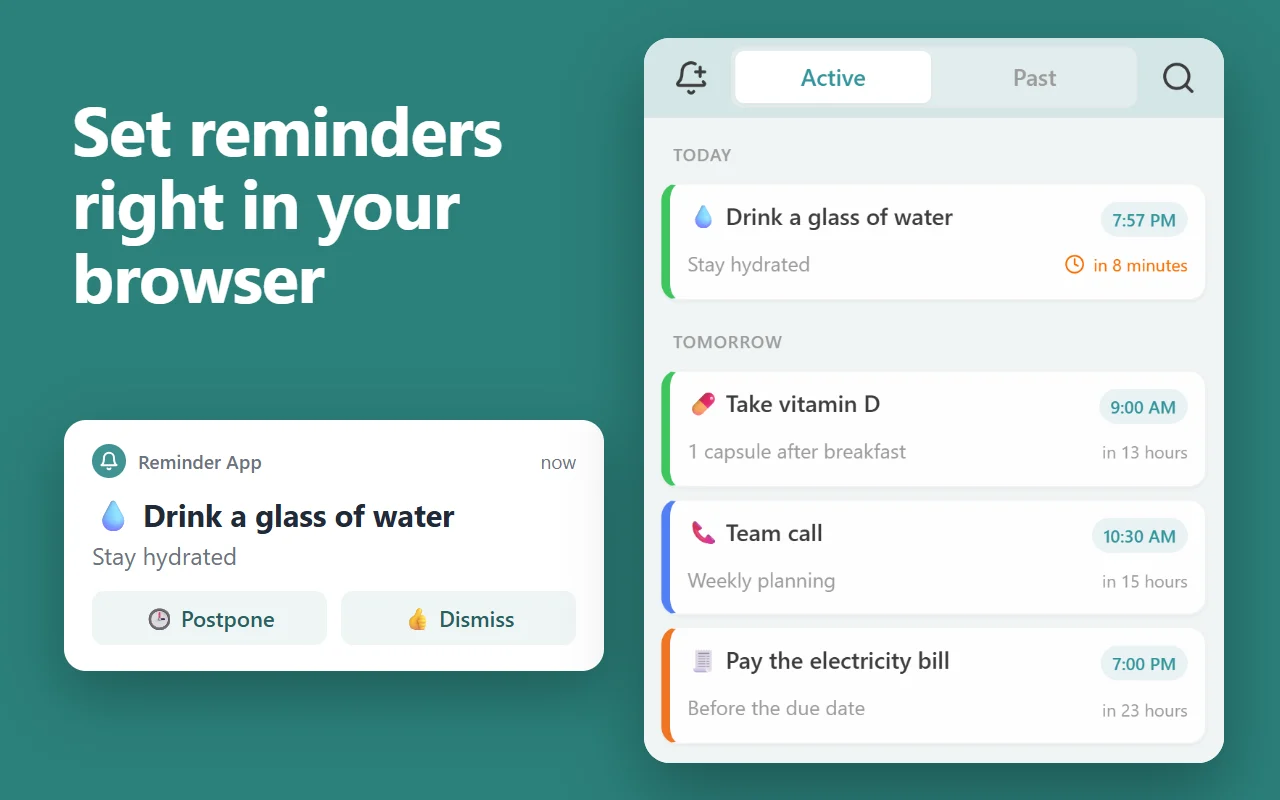
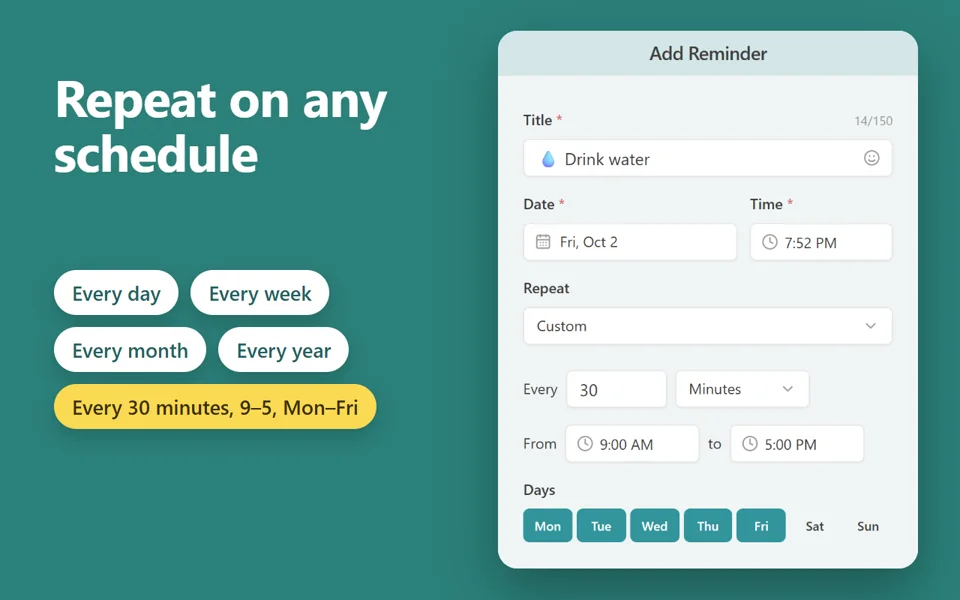
Set a reminder for one minute on our online reminder and switch to another window. If it rings but nothing pops up, one of the steps above is still blocking Chrome.
The Reminder App extension runs the same check when it’s installed: it sends a test notification and, if nothing shows, lists the settings for your system. It can also show reminders in a small window of their own, which notification settings don’t hide.
Updated October 19, 2026